To install models manually from HuggingFace, there are some steps that you should follow.
¶ Base & GPTQ (4-bit precision) Models
¶ Windows
- Install GitHub Desktop.
- Run Github Desktop and click on Clone a respository from the internet.
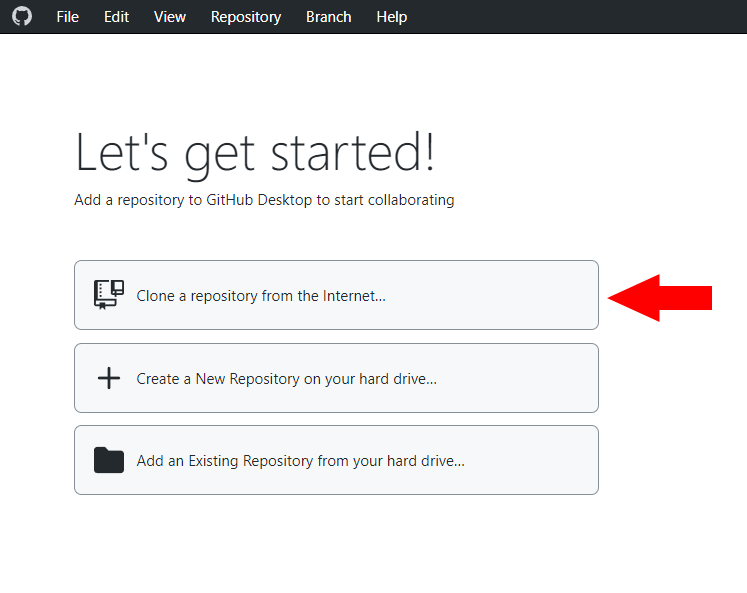
As an example, if we wanted to download Pygmalion-6b, we would put in the following repository link into Github Desktop:
https://huggingface.co/PygmalionAI/pygmalion-6b
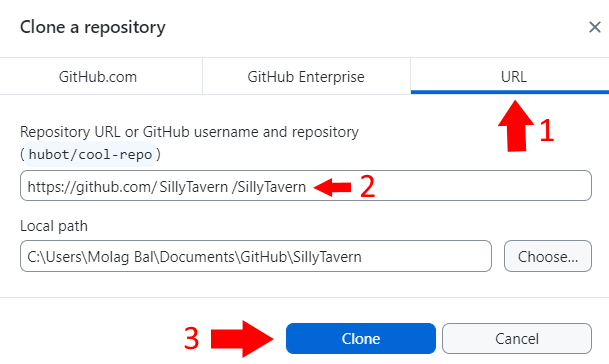
For local path, set it to the following folders, depending on your backend system below.
- KoboldAI:
[KoboldAI Folder]/models - Oobabooga:
[Oobabooga Folder]/text-generation-webui/models
- (For GPTQ Models) Go to the models folder and go to the folder that was created and check if you see a file that begins with
4bit-in the file name. If such a file does not exist, rename the safetensors file you see to be4bit.
If you see a
Xgin the filename, incorporate that to the filename itself (i.e. if the model has 128g in the filename, make the new filename be4bit-128ginstead.
¶ Linux
- Open a Terminal instance inside the models folder of your backend and install
git.
For local path, set it to the following folders, depending on your backend system below.
- KoboldAI:
[KoboldAI Folder]/models - Oobabooga:
[Oobabooga Folder]/text-generation-webui/models
- Copy the following command into your terminal
git clone <repo link>
Replace
<repo link>with the HuggingFace repository link. As an example, if we wanted to download Pygmalion-6b, the command should appear as such
git clone https://huggingface.co/PygmalionAI/pygmalion-6b
¶ GGML (GPU+CPU) Models
GGML models are more trickier compared to base and GPTQ models. To download them, follow these steps.
For this tutorial, we will be using this GGML repository by concedo.
¶ Windows/Linux (GUI)
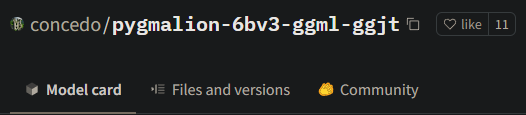
- Click on Files & versions from the HuggingFace repository page you want to download.
- Download the model by clicking the Download button on the model you wish to download.
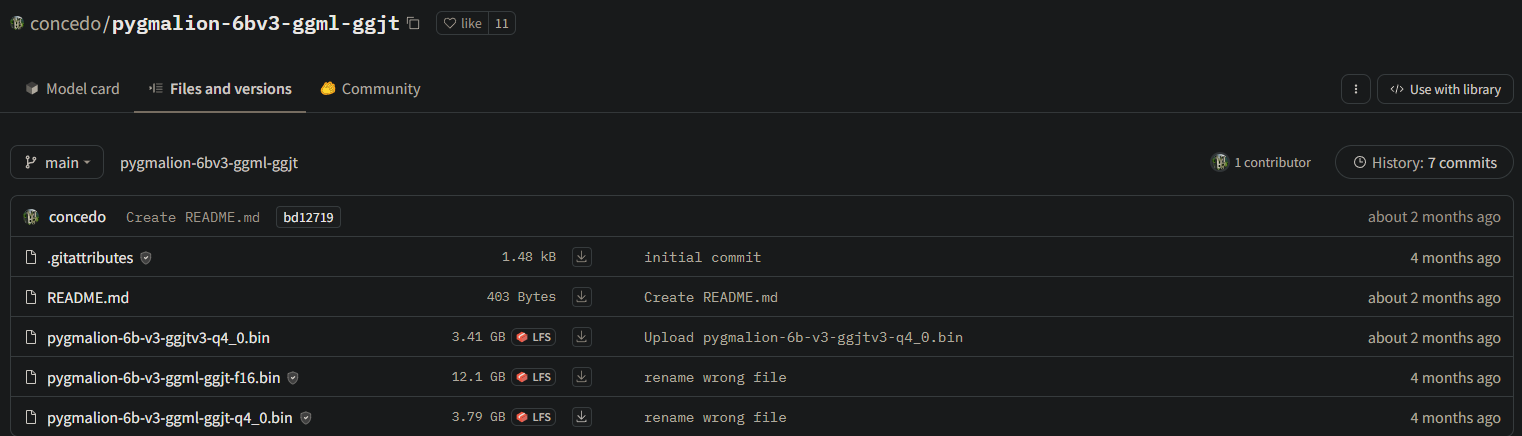
Some repositories may have multiple versions of
.binfiles to download. In this case, download the the version that hasggmlin it's name. You may also noticed there are differentqX_Xandf16. We recommend downloading a model betweenq4_0andq5_1for GGML models.
- Save the
.binfile you downloaded to where KoboldCPP is saved in or in[Oobabooga Folder]/text-generation-webui/modelsfor Oobabooga.
¶ Linux (Console)
You will need a secondary device to get the link to the model and install
wgeton your system if it isn't installed. Make sure your terminal instance is in the location where KoboldCPP is saved in or in[Oobabooga Folder]/text-generation-webui/modelsfor Oobabooga.
- Follow Step 1 of Windows/Linux (GUI).
- Instead of clicking on the Downloads icon in Step 2 of the Window/Linux (GUI) guide, right-click on it, and click
Copy Link. - With that link in hand, copy the following command into your terminal instance:
wget <link>
Replace
<link>with the link you copied over.